So, it's been rather hot in London of late; it reached 27.5°C in our lounge on Sunday, according to our central heating's thermostat!

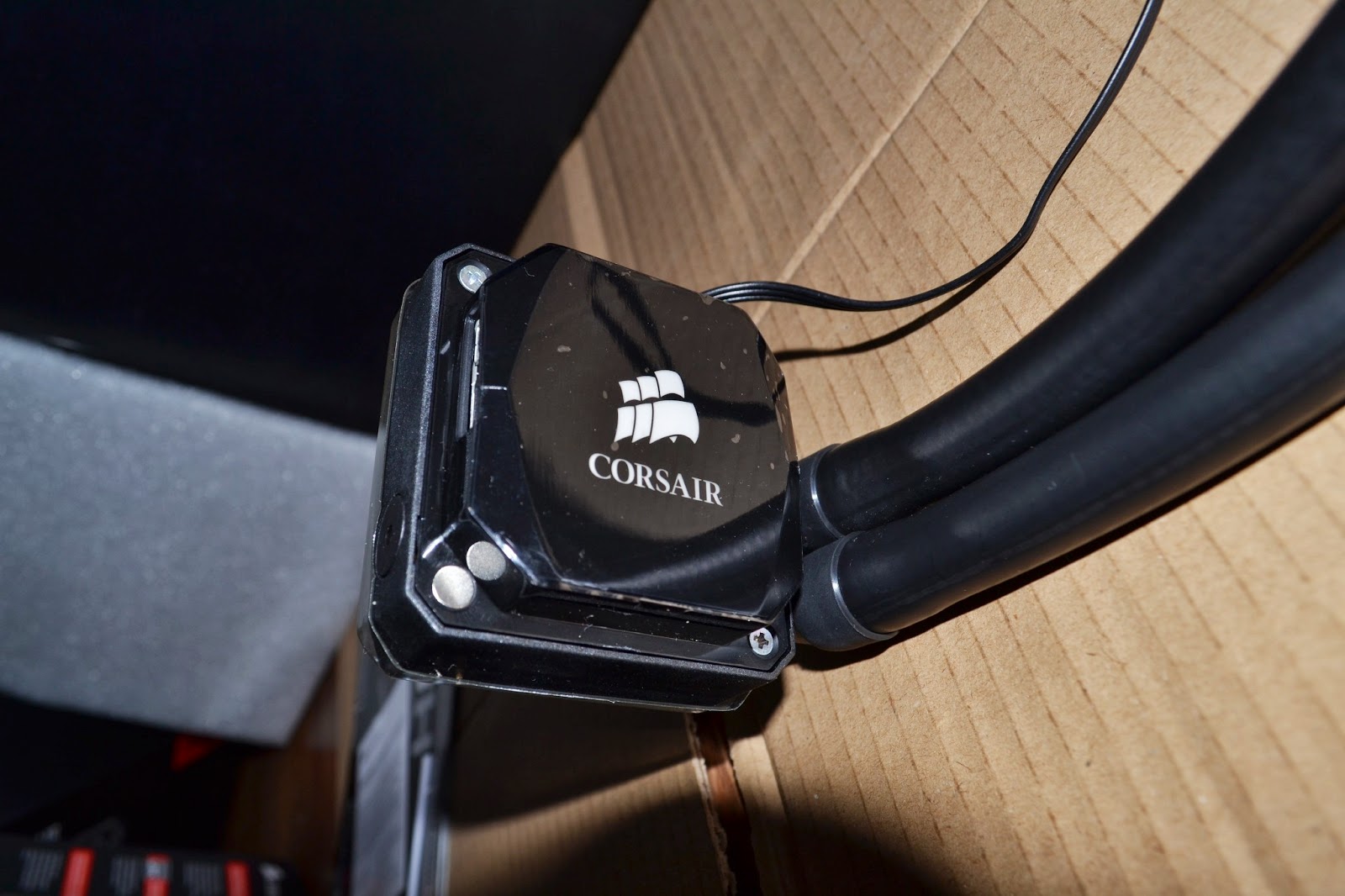
I was keen to see what effect this was having on my rig's temperatures, so during a Civilization session yesterday evening, I ran HWMonitor to keep an eye on things. Afterwards, I was shocked to see my CPU temp had peaked at 52°C, which is the highest I've seen it since installing the Corsair H80i. It's a reasonable assumption that if I had actually been running Prime 95 and fully maxing out my CPU cores, I would have seen a BSOD or the system lock up!
While researching overclocking in preparation for my own experiments, I did find posts from individuals who stated they had to decrease their voltages and/or clock speeds during summer months and I can now see why! Following yesterdays observation, I started to speculate on how I might improve the situation:
- The Corsair H80i recommends installing the radiator fans so they act as an intake for optimal cooling. However, I had installed them in an exhaust configuration because the radiator is positioned at the rear of my case and I'm not keen on changing this because:
- It would disrupt the front-to-back airflow I have currently in the system.
- There's not much room behind the case; there's a wall there, and it's positioned between our desk and our entertainment centre. I'm not convinced pulling in air from that region of the room will be particularly cool, especially given heat being dumped out there by the PSU and other electronic systems nearby.
- I would need more dust guards to place over the fans if they were intakes, which would most likely hamper their efficiency (I noticed a reasonable drop in cooling performance when I installed the dust guards over my side-door fans).
- I could position a desk fan to assist with circulating air around the case itself. This isn't an ideal solution but might help to ferry the hot air away from the rear of the case as well as provide cooler air to be pulled in by the intake fans.
- The Corsair H80i is currently has the fans configured with the "Balanced" profile, perhaps I need to switch to "High Performance". This will likely make the system far noisier, but should help bring the CPU temps down.
- There may be some benefit to me tweaking the Corsair Link software as I'm unsure if the fan speed is changing based on temperature; I didn't notice any change in pitch or volume while playing. I did have a couple of issues with software:
- I couldn't successfully run the Link software in my non-privileged user account. When I attempt to launch the application, I get prompted for my admin password, and I can actually see a Corsair Link process in Task Manager, but I'm unsure if it's actually working because no window gets rendered to my screen!
- I had problems linking the fan speed to the CPU temperature. Since unlocking an additional CPU core, the core temperatures reported by the chip itself no longer works. Instead I rely on the CPU temperature as reported by the motherboard. However, the Corsair Link software seemingly only allows me to use either the chip-reported core temps (which are always 0°C and therefore useless), or the coolant temperature. I'll have to investigate this further, as I might have to try and discern what threshold to raise fan speed using the coolant's temperature if I can't figure out how to use the motherboard reported CPU temp.
- It's possible to replace the stock H80i fans, which some people have suggested can improve cooling performance, so I might have a dig around online to see those that offer the biggest improvement.
- I was already considering purchasing a fan controller unit, perhaps this would be useful now; allowing me to force the remainder of my case fans to higher RPMs during the hot spell.
I'll have to wait for payday before I splash out on any new gear, so I'll probably try tweaking the Corsair software for now and/or positioning a desk fan to point at the system. It's fortunate that I picked up on this now, before I tried any thing crazy like pushing my overclock any further!